AREDN Server for ESP32
An experimental lightweight local web server for the AREDN (Amateur Radio Emergency Data Network). It runs on an Arduino Nano ESP32 and provides a message board, a camera snapshot page, and browser-based radio calculators without requiring external internet or central server infrastructure.
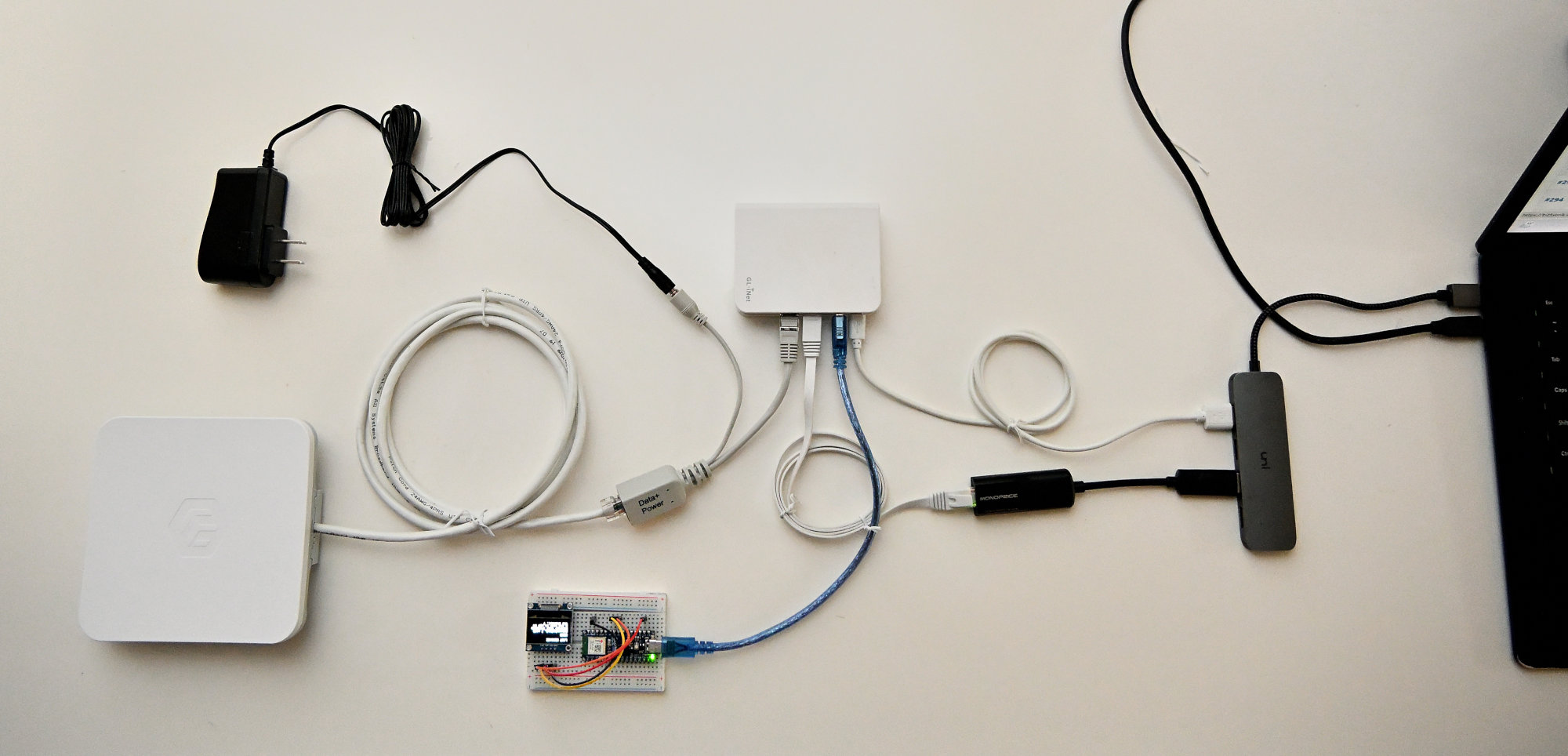
Features
- The browser polls the message board every 30 seconds by default and requests only messages newer than the latest received ID.
- HTTP responses use
Connection: closeto free TCP sockets promptly. - Messages are stored as validated fixed-size binary records in FFat. JSON is used for import and export.
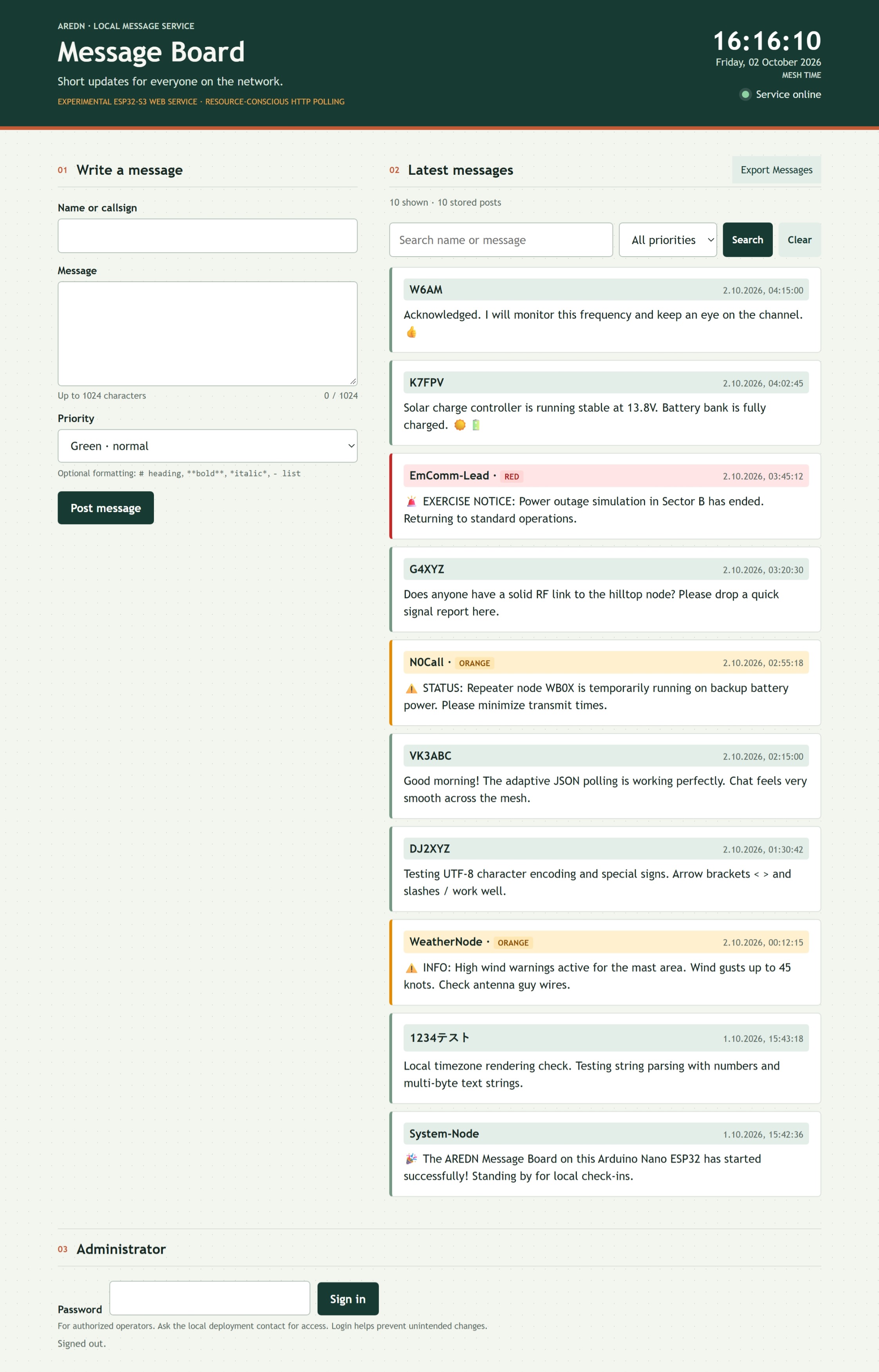
- Messages support Green, Orange (warning), and Red (emergency) priorities, with browser-side rendering and filtering.
- All service pages synchronize the device clock from the visiting browser; the message board also periodically corrects clock drift.
- The camera snapshot is fetched once every 30 seconds by a background task, independently of the number of viewers.
- Radio Tools provides browser-side Maidenhead locator and radio link-budget calculators without additional ESP32 processing.
System Requirements
- Hardware: Arduino Nano ESP32, or an equivalent ESP32 board with sufficient flash memory mapped for FFat.
- Client: A modern web browser with HTML5 and ES6 support.
Hardware
The optional SSD1306 OLED uses the board's default I2C interface and address 0x3C. When connected, it cycles every five seconds through four screens: main server status, a large two-line IP address, the newest message, and camera status. The camera screen shows the snapshot age and actual JPEG dimensions, the measured interval between the last two successful snapshots, the next requested resolution, and the duration and bytes received in the last camera fetch (including failed attempts). Until two snapshots have been received, the measured refresh interval is shown as waiting. The main screen shows the router connection state and Wi-Fi signal strength. If no router Wi-Fi credentials are saved, the OLED displays the setup access point name, password, and setup URL. The web service can also run without the OLED.
OLED Wiring
For an Arduino Nano ESP32, connect a 4-pin I2C SSD1306 OLED as follows:
| OLED pin | Nano ESP32 pin | Description |
|---|---|---|
VCC |
3V3 |
3.3 V supply |
GND |
GND |
Ground |
SDA |
A4 / SDA |
I2C data |
SCL |
A5 / SCL |
I2C clock |
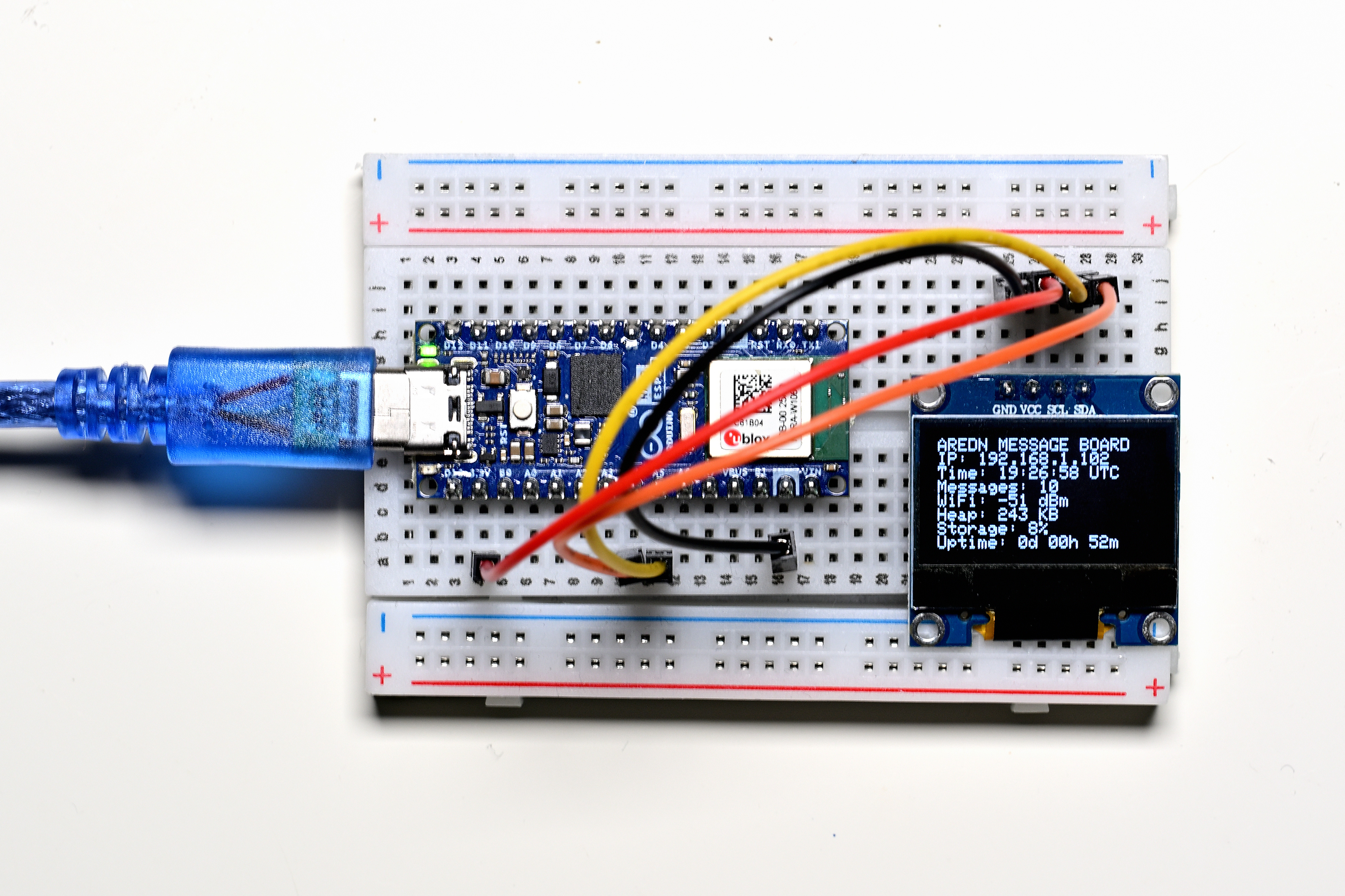
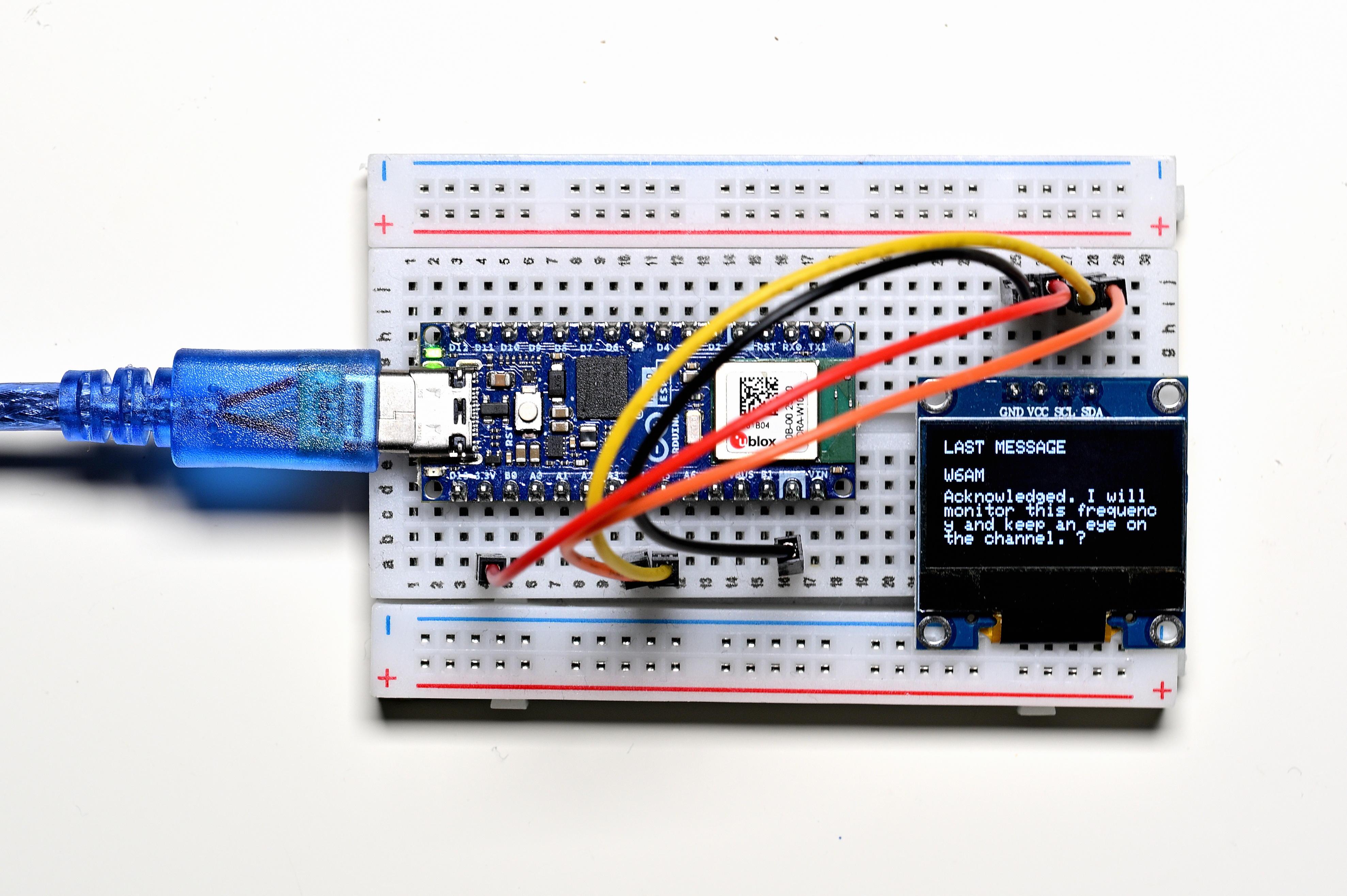
Check the module's pin labels before connecting it. Do not apply 5 V to a 3.3 V-only OLED module.
Installation
Choose either the web flasher or build from source.
Flash with the web flasher
The firmware can be flashed online directly to the board using the AREDN Firmware Flasher.
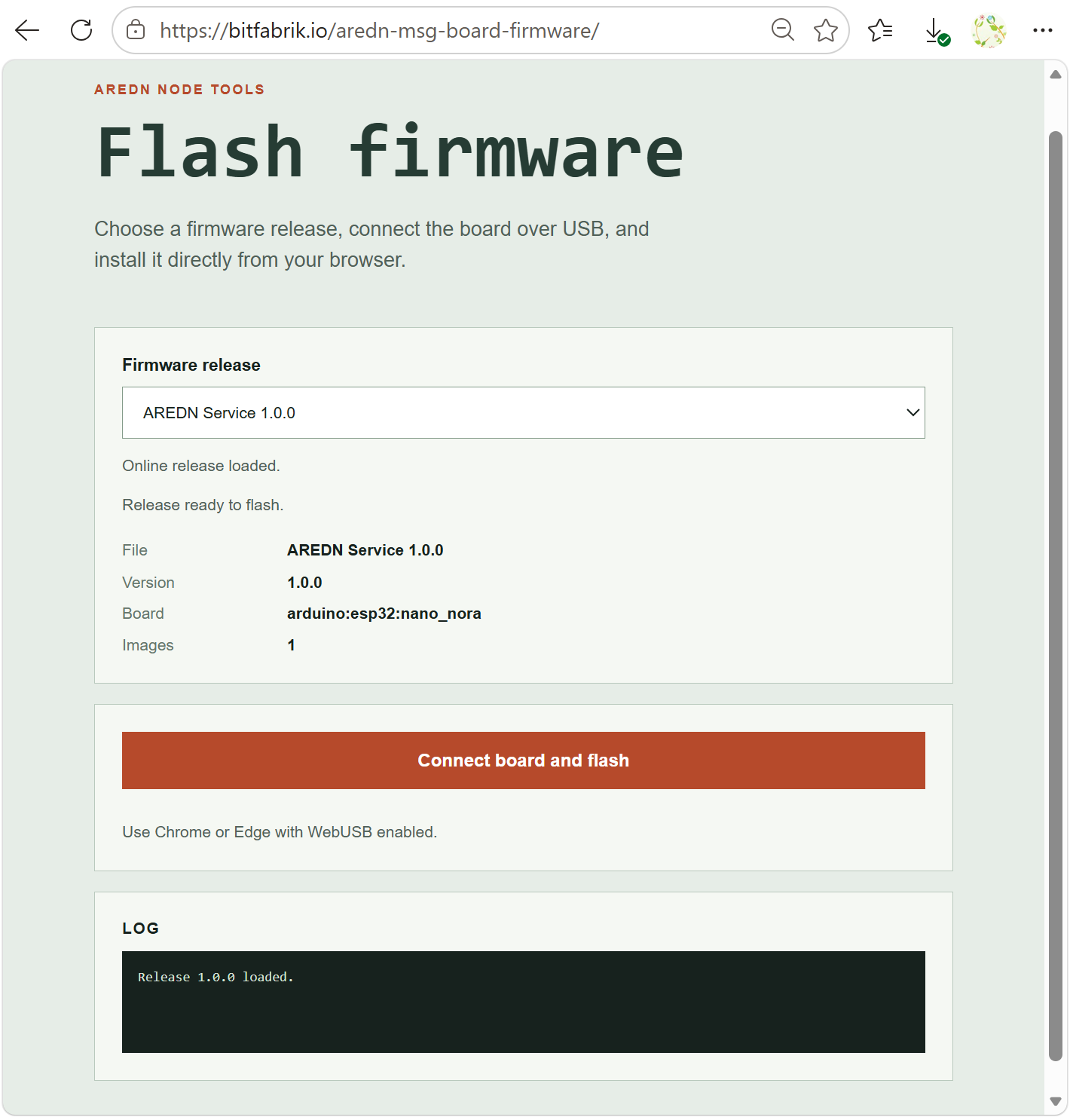
Connect the board to your computer by USB, open the page in a supported browser, and follow its instructions. After flashing, connect to the AREDN-Server-Setup access point and follow the setup steps below.
Build and flash from source
You can build and install the firmware from the GitHub source repository:
- Install the ESP32 board package in the Arduino IDE.
- Select an Arduino Nano ESP32 or a compatible ESP32 board with FFat support.
- Install these libraries through the Arduino Library Manager:
- ESPAsyncWebServer
- Adafruit GFX Library
- Adafruit SSD1306
- Open
aredn-services.ino, select the correct board and port, then upload the sketch. - Connect to the
AREDN-Server-Setupaccess point and follow the setup steps below.
The service uses the ESP32's built-in WiFi, Wire, FFat, FreeRTOS, and system libraries. WebServer and ArduinoJson are not required.
Setup
The device always starts the AREDN-Server-Setup access point, including while connected to router Wi-Fi:
- Access point:
AREDN-Server-Setup - Password:
arednsetup - Setup page:
http://192.168.4.1/setup
Connect a phone or computer to the setup access point and open the setup page. The setup pages and configuration APIs are available only through this access point, not through router Wi-Fi or the AREDN network.
Wi-Fi Setup
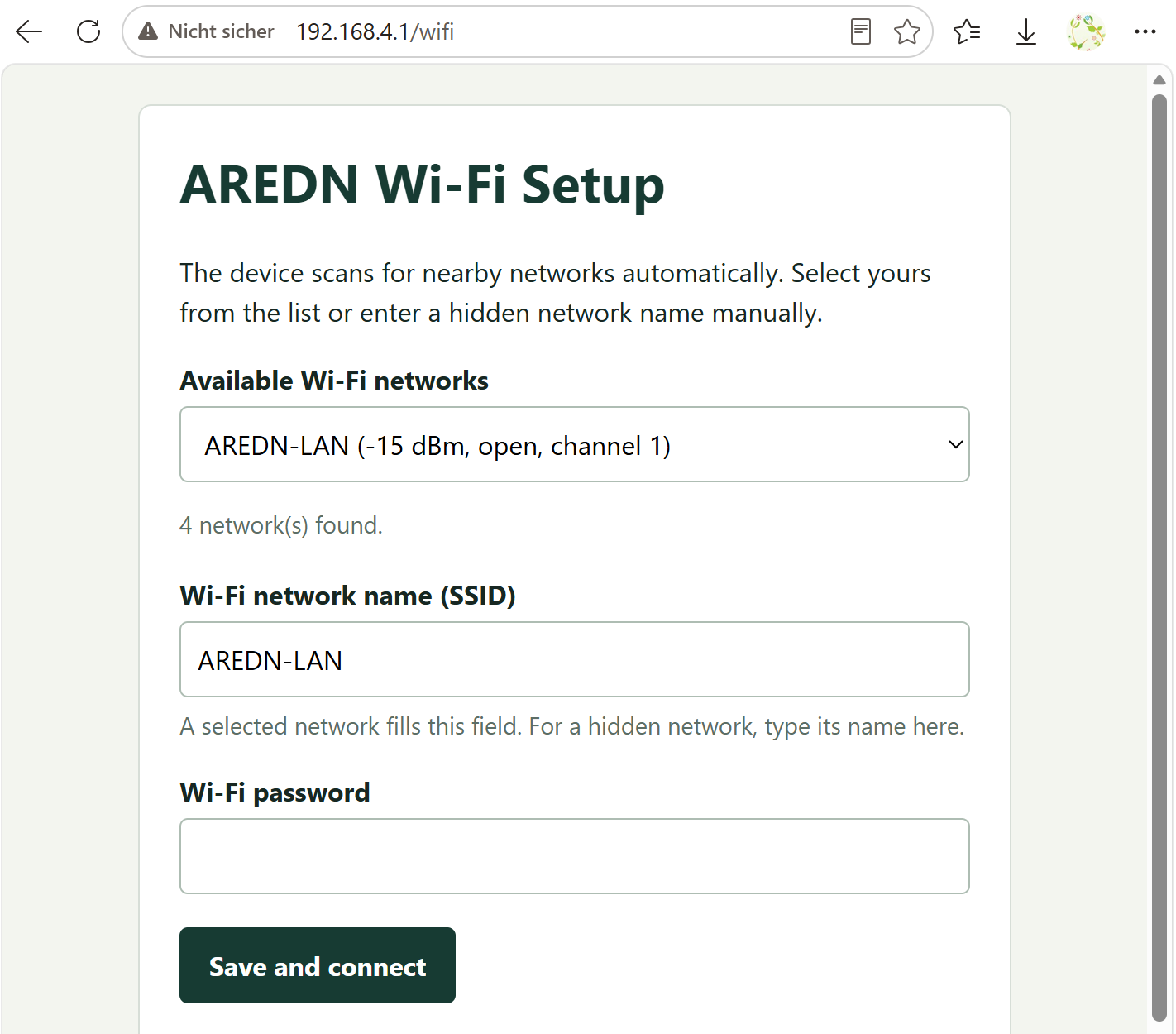
Choose Wi-Fi network on the setup page. Scan for nearby networks and select one, or enter the SSID manually for a hidden network; then enter the Wi-Fi password. A current-connection panel near the top shows the router connection status and the router and setup access point IP addresses. The ESP32 tests the connection and saves working credentials in non-volatile storage. The Wi-Fi settings can be changed later through the setup access point.
Reolink Camera Setup
Open the camera setup page at http://192.168.4.1/setup/camera while connected to the setup access point:
- Give the RLC-510A a reserved IPv4 address on a network reachable by the ESP32.
- Enable the camera's HTTP port in Reolink settings. The default port is
80; see Reolink's port settings guide. - Enter the camera IP, HTTP port, Reolink username, and password.
The password is stored in ESP32 Preferences and is never returned by the setup API or sent to camera-page viewers. The camera-to-ESP32 request uses HTTP and includes the camera credentials in that local request. Use a dedicated camera account and keep the camera connection on a trusted local network; do not expose the camera's HTTP port to the mesh or Internet.
Services
The service portal is available at /. The message board is served at /msg-board, with its API under /msg-board/api/. The camera snapshot page is available at /camera. Radio Tools is available at /tools.
Message Board
The board supports message submission, priority filtering, search, and administrative editing and import/export. Messages persist in FFat across restarts.
Camera Snapshot
The Camera Snapshot page shows a still JPEG image, refreshed about every 30 seconds. Beside its age, it shows the megapixels of the displayed image. Its preview can be expanded to fullscreen in supported browsers. The SVG overlay is drawn in each visitor's browser and remains separate from the camera JPEG.
The ESP32 starts with Reolink's cmd=Snap JPEG endpoint at the camera's default resolution. A background FreeRTOS task normally starts one snapshot request every 30 seconds, independently of viewer count; download time is part of that interval. When camera-to-ESP32 transfers remain slow, a time-based controller gradually reduces the requested resolution through 896 × 672 and 640 × 480. Before increasing resolution it estimates the next image's transfer time from observed image sizes, throughput, and response time; a quick small image alone does not trigger an upgrade to a much larger one. If the estimate is missing or remains unfavorable, the controller occasionally tries the higher level after at least 15 minutes so that a stale size estimate cannot keep it stuck indefinitely. Individual slow transfers do not cause an immediate change, and connection failures alone do not reduce resolution. The controller starts over at the default resolution when camera settings change or the device restarts.
Connection and transfer timeouts adapt to recent successful transfers within safety limits. Transient failures are retried after 3 seconds, increasing to at most 30 seconds on consecutive failures; a successful update resets the retry delay. If a slow viewer still holds the spare buffer, the update is retried after 5 seconds without discarding the current image. The latest JPEG is held in two bounded PSRAM buffers so the active image can be served while the next one is downloaded. The browser checks the status endpoint every 5 seconds independently of image downloads, downloads the JPEG only when its version changes, and shows the snapshot age reported by the device. Refreshing pauses while the page is hidden.
The resolution controller measures the camera-to-ESP32 transfer, not individual viewers' connections. The camera status API and browser console report the next requested resolution level (0 is default, 1–4 are the sizes above), the last camera fetch duration and byte count, and the next download timeout. The serial console also logs the request level and separate header and download durations. Actual JPEG dimensions depend on the camera's response to the requested size.
Snapshots larger than the 2 MiB buffer limit are rejected and reported in the camera status.
Radio Tools
The Radio Tools page contains two client-side calculators, in this order:
- Maidenhead Locator accepts even-length locators from 2 to 12 characters and estimates the distance, initial bearing, and center coordinates between them.
- Link Budget Calculator estimates transmit EIRP, free-space path loss, received signal level, and link margin from frequency, distance, transmit power, antenna gains, feedline losses, and receiver sensitivity.
Calculations run in the visitor's browser; the ESP32 only serves the page. Link-budget results are free-space estimates and do not model terrain, obstacles, Fresnel-zone clearance, interference, polarization, or weather.
Storage and Limits
Messages are stored in /messages.dat as fixed-size records with a checksum. Replacement files are written through temporary FFat files so normal imports, edits, and deletions do not modify the active file in place.
The in-memory index supports up to 4096 records. Imports currently retain at most 4095 messages; larger imports are accepted but truncated. JSON fixtures in the project are intended for import and pagination testing.
Supported import fields are id, created_at in UTC ISO-8601 format (YYYY-MM-DDTHH:MM:SSZ), name, text, and optional priority (green, orange, or red).
API Reference
Message Board API
GET /msg-board/api/messagesreturns newest messages first, at most 100 per request (default 20). Optional parameters:limit=,after=,before=,search=,priority=green|orange|red|all,rev=, andboot=. Clients pass the revision (r) and boot ID (b) from their previous response asrevandboot; the response flagfis thentruewhen a message was edited, deleted, imported, or reset after that revision, or when the device has restarted, and the client must reload the list instead of polling incrementally.POST /msg-board/api/messagessubmits a message.GET /msg-board/api/messages/export.jsondownloads the complete board as JSON; it requires an admin session.GET /msg-board/api/timereturns the current device clock state.POST /msg-board/api/timesets the device time manually using form fieldepoch; it requires an admin session.
Example response from GET /msg-board/api/messages:
{"r":2,"b":"a1b2c3d4e5f60718","f":true,"v":true,"s":"client","e":1790968087,"p":[{"i":10,"t":1790939700,"u":"W6AM","m":"Acknowledged."}]}Administration API
These endpoints require the admin session cookie created by login. The session token is random, expires after one hour, and login is blocked for one minute after five failed attempts:
POST /msg-board/api/admin/loginwith form fieldpasswordPOST /msg-board/api/admin/logout(admin session required)GET /msg-board/api/admin/statusPOST /msg-board/api/admin/importwith anapplication/jsonfile body; the board answers202once the upload is stored and finishes the import in a background taskGET /msg-board/api/admin/import/statusreports{"state":"processing"},{"state":"done","count":,} {"state":"failed","reason":", or"} {"state":"idle"}DELETE /msg-board/api/admin/message?id=andPOST /msg-board/api/admin/message?id=with form fieldsname,text, andpriorityreturn202while the board edits or deletes the message in a background task. Only one edit/delete runs at a time; a competing request gets409with{"error":"board_busy"}and its browser waits for the active operation to finish before asking the administrator to retry.GET /msg-board/api/admin/message/mutation/statusreports{"state":"processing"},{"state":"done"},{"state":"failed"}, or{"state":"idle"}DELETE /msg-board/api/admin/messagesPOST /msg-board/api/admin/format/preparestarts the time-limited confirmation for a full FFat resetPOST /msg-board/api/admin/formaterases the whole FFat partition like a new board after the challenge and exactFORMAT FFATconfirmation are supplied; the request can take up to two minutes, and this deletes all FFat files but does not delete Preferences dataDELETE /msg-board/api/admin/message?id=POST /msg-board/api/admin/message?id=with form fieldsname,text, andpriority(all required)
Device and Setup APIs
GET /api/status returns Wi-Fi, heap, and uptime information, the existing top-level board fields, and a services object containing the full status details and volatile page access count for each main service. Status endpoints return indented JSON for easier reading in a browser. Counts include only successful requests for /msg-board, /camera, and /tools; API requests and the home page are not counted. Counts reset on restart.
GET /msg-board/api/status returns the board readiness, message and storage metrics, and access count. GET /tools/api/status returns its status and access count. GET /camera/api/status returns the camera snapshot status and access count.
POST /api/time/sync accepts a form field epoch and submits a browser time sample to the device clock. The root, camera, and message-board pages call it when opened; the message board also calls it during its periodic refresh. Large corrections and corrections after manual time setting require agreement from three distinct clients whose samples are within 10 seconds of each other. Each sample is advanced by the time elapsed since it arrived, a client's newer sample replaces its older one, and samples older than one hour are discarded.
The following setup pages and APIs are only available to clients connected to the AREDN-Server-Setup access point:
GET /setupserves the setup selection page.GET /setup/wifiserves the Wi-Fi configuration page.GET /setup/cameraserves the Reolink camera configuration page.GET /api/wifi/statusreturns connection state and setup/router IP addresses.POST /api/wifi/scanstarts an asynchronous scan for nearby networks.GET /api/wifi/networksreturnsscanning,completewith scan results, oridle.POST /api/wifi/configaccepts form fieldsssidandpassword; credentials are saved after a successful connection.GET,POST, andDELETE /api/camera/configread, save, and clear camera settings.
Camera Snapshot API
GET /camera/api/statusreports the camera status, snapshot availability, and age without revealing camera settings.GET /camera/image.jpgserves the current cached JPEG. Before the first successful snapshot, it returns503.
Radio Tools
GET /toolsserves the browser-based Maidenhead Locator and Link Budget Calculator page. The calculators do not use additional API endpoints.
Examples
Submit a message:
Invoke-WebRequest http://device-address/msg-board/api/messages -Method Post -Body @{
  name = 'W6AM'
  text = 'Acknowledged.'
  priority = 'green'    # 'green' = normal, 'orange' = important, 'red' = urgent
}
Read the newest messages:
Invoke-RestMethod 'http://device-address/msg-board/api/messages?limit=20'Use after= for newer messages and before= for older messages. Additional filters are search= and priority=green|orange|red|all.
Security and Deployment
The service uses plain HTTP and is intended for a trusted local AREDN network. It does not provide TLS. The firmware no longer requires arduino_secrets.h.
Load Test
load-test.ps1 runs staged polling and posting tests against a configured device. Set $BaseUri at the top of the script before running it:
.\load-test.ps1The device clock must already be valid before running the posting stage. The script requires PowerShell and network access to the device.