cPicture

🔍 Suche...
🔍
Alle Begriffe mĂźssen vorkommen (UND), "Phrase" fĂźr exakte Treffer, r"regex" fĂźr Muster (oder ').
  • Script plugin (.bat, .ps1, .py)

    📅 19. Januar 2025 · ⏱️ 5 min

    The script plugins for batch files and powershell files are consolidated into one script plugin, which also adds python script files.
    The new plugin is available from the plugins option in cPicture.
    Note: The old plugins are still valid, but should be removed as they cause duplicate entries (delete cpp_bat_script.dll and cpp_ps1_script.dll in the plugins folder).

    github src

    Example batch script

    @echo OFF
    
    echo file=%1
    echo name=%2
    echo dir=%3
    echo width=%4
    echo height=%5
    echo sequence number=%6 
    echo number of files=%7
    
    REM wait for user to close the console
    pause


    Example PowerShell script

    <#
    .DESCRIPTION
        Example PowerShell script to print the picture data
    
    .NOTES
        This example is using the default cPicture custom data template
        for the $picture_data.cdata value.
        This value can be changed in the Settings (F9).
        The .DESCRIPTION text is used for the menu tooltip.
    #>
    
    # plugin variables
    # Do not remove the leading # of the variable #[...]:
    
    # console=true (default) displays a console, use this option for scripts with text output.
    #[console=true]
    
    # noexit=true keeps the console open, set to 'false' (default) to have the console closed when processing is done. This variable is only used when #[console=true].
    #[noexit=false]
    
    param
    (
        [Parameter(Mandatory=$true)]
        [string]$picture_data_json
    )
    
    # Get the picture data.
    $picture_data_set = ConvertFrom-Json -InputObject $picture_data_json
    
    # Print the number of pictures.
    [int]$size = $picture_data_set.length
    Write-Host "$size picture(s):" -ForegroundColor White
    Write-Host ("-" * 15)
    Write-Host
    
    # Print the picture data.
    [int]$i = 1
    foreach ($picture_data in $picture_data_set) {
        # Example:
        # $picture_data.file   : c:\Bilder\bild1.jpg
        # $picture_data.name   : bild1.jpg
        # $picture_data.dir    : c:\Bilder\
        # $picture_data.width  : 3712
        # $picture_data.height : 5568
    
        # $picture_data.audio        : false
        # $picture_data.video        : false
        # $picture_data.colorprofile : false
        # $picture_data.gps          : N 47° 37' 0,872498" W 122° 19' 32,021484"
        # $picture_data.aperture     : 5.6   # f/5.6
        # $picture_data.shutterspeed : 1250  # 1/1250s
        # $picture_data.iso          : 100
        # $picture_data.exifdate     : 133553225690000000
        # $picture_data.exifdate_str : 19.03.2024 11:49:29
        # $picture_data.model        : NIKON Z 30 
        # $picture_data.lens         : 16-50mm f/3,5-6,3 VR f=44mm/66mm
        # $picture_data.cdata        :  # Configurable with F9
        # name               : Pike-Place-Market-Kreuzung-360x180.jpg
        # dir                : C:\Bilder\
        # size               : 1624x812 Bildpunkte
        # model              : [NIKON Z 30]
        # settings           : 1/1250s ISO 100/21°
        # contains           : Kommentar, XMP, Farbprofil,
        # gps                : N 47° 37' 0,872498" W 122° 19' 32,021484"
        # file_size          : 835 KB (855189 Bytes)
        # file_create_date   : Dienstag, 19. März 2024 um 11:49:29 Uhr
        # file_modified_date : Dienstag, 19. März 2024 um 11:49:29 Uhr
        # exif_date          : Dienstag, 19. März 2024 um 11:49:29 Uhr
    
        [int]$MP = $picture_data.width * $picture_data.height / 1000000
        "Picture '{0}' ({4} of {5}) with {1}x{2} pixel ({3}MP)" -f $picture_data.file, $picture_data.width, $picture_data.height, $MP, $i, $size
        "  name='$($picture_data.name)', dir='$($picture_data.dir)'`n"
    
        # Enumerate all data fields.
        foreach ($data in $picture_data.PSObject.Properties) {
            Write-Host "  $($data.Name)" -ForegroundColor Green -NoNewline
            Write-Host ": " -NoNewline
            Write-Host "$($data.Value)" -ForegroundColor Blue
        }
    
        <# 
            Use ConvertFrom-Json when cdata is a json array to access the data elements.
            Otherwise cdata is arbitrary text and use $picture_data.cdata as a string, for example: Write-Host $picture_data.cdata
        #>
    
        # The default setting for the data is a JSON array matching the tooltip data in cPicture.
        $cdata = ConvertFrom-Json -InputObject $picture_data.cdata
    
        # Example usage:
    
        # Use specific data field.
        Write-Host $cdata.model -ForegroundColor Yellow
    
        # Enumerate all data fields.
        Write-Host "$($cdata.psobject.properties.Value.Count) elements in `$picture_data.cdata:"
        foreach ($data in $cdata.psobject.properties) {
            Write-Host "  $($data.Name)" -ForegroundColor Green -NoNewline
            Write-Host ": " -NoNewline
            Write-Host "$($data.Value)" -ForegroundColor Blue
        }
    
        "-" * 70
    
        $i++
    }
    
    # Use this to pause the console when using the #[console=true] option.
    # Do not use when #[console=false] as the console is not displayed.
    Write-Host "Press any key to continue ..."
    [void]$host.UI.RawUI.ReadKey("NoEcho,IncludeKeyDown")


    Example Python script

    """
    Description: Example python script to print the picture data
    """
    
    # plugin variables
    # Do not remove the leading # of the variable #[...]:
    
    # console=true (default) displays a console, use this option for scripts with text output.
    #[console=true]
    
    # noexit=true keeps the console open, set to 'false' (default) to have the console closed when processing is done. This variable is only used when #[console=true].
    #[noexit=true]
    
    import json
    import sys
    import base64
    
    COLORS = {
        "red": "\033[31m",
        "green": "\033[32m",
        "yellow": "\033[33m",
        "blue": "\033[34m",
        "magenta": "\033[35m",
        "cyan": "\033[36m",
        "white": "\033[37m",
        "reset": "\033[0m"
    }
    
    def colored_text(text, color):
        return f"{COLORS.get(color, COLORS['reset'])}{text}{COLORS['reset']}"
    
    # Get the picture data.
    def picture_data(base64_string):
    
        # Decode base64 string
        json_string = base64.b64decode(base64_string).decode('utf-8').rstrip('\0')
    
        # Parse JSON string
        data = json.loads(json_string)
    
        # Print the number of pictures.
        print(f"{len(data)} picture(s): {"-" * 15}")
        print()
    
        # Print the picture data for each selected picture.
        for i, item in enumerate(data):
    
            # Example:
            # item["file"]   : c:\Bilder\bild1.jpg
            # item["name"]   : bild1.jpg
            # item["dir"]    : c:\Bilder\
            # item["width"]  : 3712
            # item["height"] : 5568
    
            # item["audio"]        : false
            # item["video"]        : false
            # item["colorprofile"] : false
            # item["gps"]          : N 47° 37' 0,872498" W 122° 19' 32,021484"
            # item["aperture"]     : 5.6   # f/5.6
            # item["shutterspeed"] : 1250  # 1/1250s
            # item["iso"]          : 100
            # item["exifdate"]     : 133553225690000000
            # item["exifdate_str"] : 19.03.2024 11:49:29
            # item["model"]        : NIKON Z 30 
            # item["lens"]         : 16-50mm f/3,5-6,3 VR f=44mm/66mm
            # item["cdata"]        :  # Configurable with F9
    
            print(colored_text(f"Picture {i+1}:", "yellow"))
    
            mp = int(item["width"] * item["height"] / 1000000)
            print(f"Picture '{item["file"]}' ({i+1} of {len(data)}) with {item["width"]}x{item["height"]} pixel ({mp}MP)")   
            print(f"  name='{item["name"]}', dir='{item["dir"]}'")
            print()
    
            for key, value in item.items():
                print(colored_text(f"  {key}", "green"), end="")
                print(": ", end="")
                print(colored_text(f"{value}", "cyan"))
            print()
    
            # Use specific cdata field.
            element_name = "Modell"
            if 'cdata' in item and len(item['cdata']) > 0:
                element_value = item['cdata'][0].get(element_name, None)
                print(f"Value of cdata element '{element_name}': {element_value}")
            else:
                print(f"cdata element '{element_name}' not found.")
    
            # Print cdata elements if they exist.
            if 'cdata' in item:
                print(f"{len(item['cdata'][0])} elements in cdata")
                for i, cdata_item in enumerate(item['cdata']):
                    for key, value in cdata_item.items():
                        print(colored_text(f"  {key}", "green"), end="")
                        print(": ", end="")
                        print(colored_text(f"{value}", "cyan"))
    
            print("-" * 70)
    
    if __name__ == "__main__":
        if len(sys.argv) == 2:
            picture_data(sys.argv[1])


    Download the plugin from Function plug-ins menu and select Manage in cPicture.
    See the plugin overview

  • JPEG9 features in cPicture4

    📅 23. Mai 2024 · ⏱️ 1 min

    The new JPEG9 features:

    Lossless compressed JPEGs

    All lossless compressed JPEGs are displayed with an icon:


    Any supported file format can be saved as a JPEG9 with lossless compression:


    JPEG lossless compressed pictures can be easily sorted:


    The lossless compression is an additional property of the standard JPEG format. With this setting, any standard JPEG can be saved as lossless compressed JPEG9:


    Copy&Paste Bitmaps in the clip board as JPEG9:


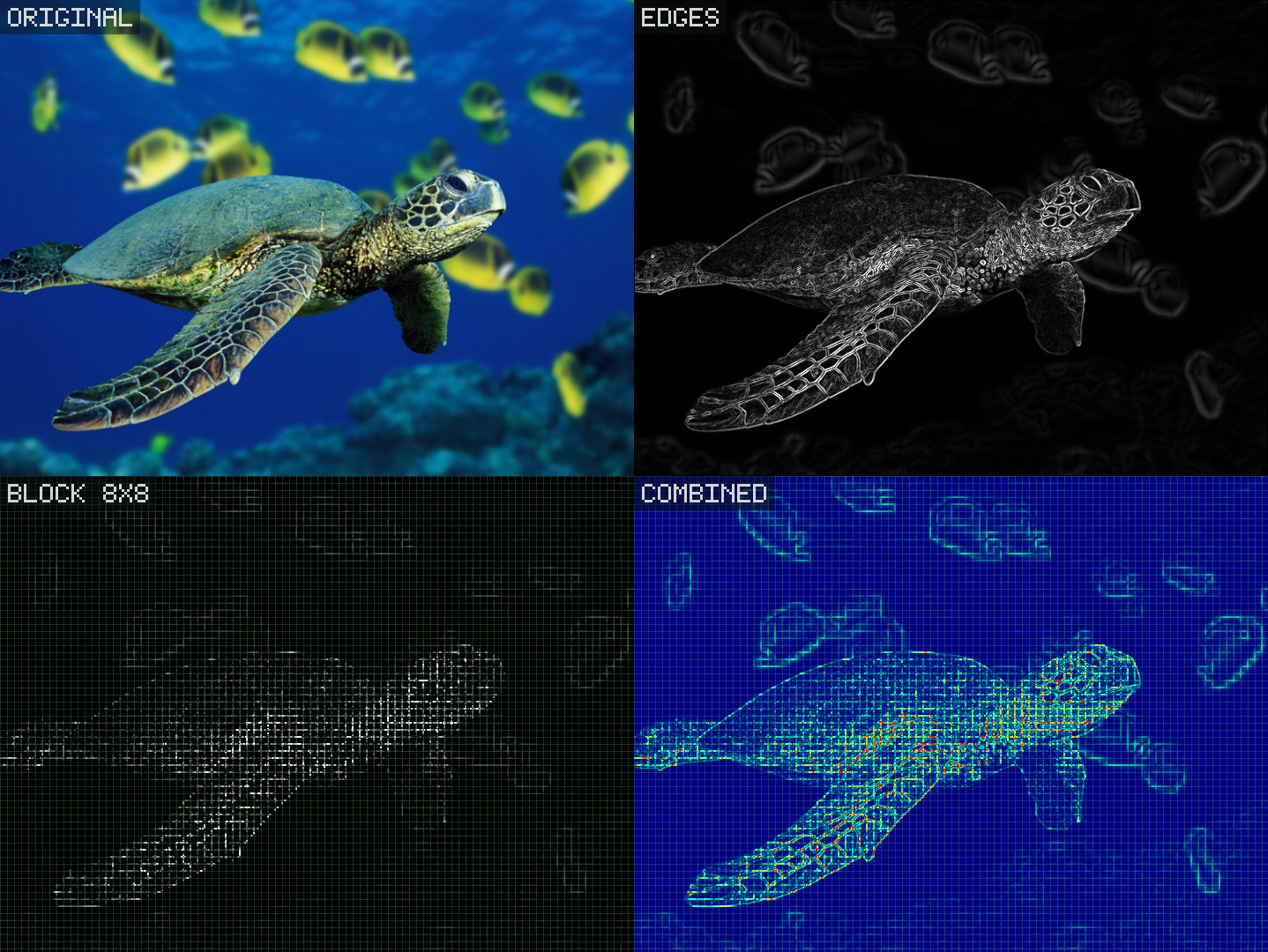
    Block scaling

    Resizing supports high quality JPEG block scaling from 12.5% to 200%:


    The zoomed image is a block scaled JPEG indicated by a 'JPEG' icon:


    Crop&Rotate

    Lossless crop with automatic alignment to the block gird:


    Lossless crop for panoramic pictures or any other segmentation:


    Lossless Rotate, Mirror and Transverse//Transpose (mirror on the diagonal):

  • Perfect resizing using gamma correction

    📅 14. März 2017 · ⏱️ 1 min

    What is this feature? Since the early days of image processing, pictures get scaled. They get resized to send as EMail, resized to get ready for print or resized to make a nice background image on the desktop. But most Software make a wrong assumtion about the luminosity of the pixel data. With the data interpolation you get egdes that are too dark between areas of different colors.

    You picture will look more natural when resized with the gamma correction applied. cPicture has it.

    Resize this image to 50% with your Software:

    Do you get this?

    Then your software doesn't scale correctly.
    With cPicture, you get the correct scaling using 32bit/color-channel with gamma correction:

  • ExifTools - change exif date

    📅 20. März 2016 · ⏱️ 2 min

    To make adjustments for all exif fields in your pictures, you can use the script plugin in cPicture to run the ExifTools on your picture selection. Assume the camera date/time is wrong by accident and all pictures are stamped with one week in advance.
    This example sets all exif date fields back 7 days.
    Create a text file, copy the following content and name it to ExifDate.ps1 and save it in the cPicture.exe folder:

    # plugin variables
    
    # console=true displays a console, use this option for scripts with text output
    #[console=true]
    
    # noexit=true keeps the console open, set to 'false' to have the console closed when processing is done
    #[noexit=false]
    
    param (
        [string]$name,
        [string]$dir,
        [string]$file,
        [int]$width,
        [int]$height,
        [int]$i,
        [int]$n
         )
    
    <#
        -name name
        -file file
        -dir dir
        -width PictureWidth
        -height PictureHeight
        -i sequence number
        -n number of files
    
        Example:
        -name c:\picture_folder\picture.jpg
        -file picture.jpg
        -dir c:\picture_folder\
        -width 1024
        -height 768
        -i 1
        -n 4
    #>
    
    # exiftool in cPicture installation folder
    # "Year:Month:Day Hour:Minute:Second"
    C:\cPicture\exiftool.exe -AllDates-="0:0:7 0:0:0" $name

    Start cpicture, select your pictures you want to change, select the function module selection and select the script you just created:

    Hint: If you use any of the exif functions in cPicture, ExifTools gets automatically installed for you.

  • cPicture auf giga.de

    📅 8. Juni 2015 · ⏱️ 2 min


    cPicture downloaden

    Das Programm cPicture ist ein kostenloser Bildverwalter und Bildbetrachter mit Ribbon-Menßs, die man von Office 2007 und Windows 8 kennt. Das Tool cPicture zeigt und bearbeitet Bilder inklusive ihrer EXIF-Informationen, sucht ähnliche und doppelte Bilder und prßft sie auf Wunsch auch auf Fehler.

    Die Freeware cPicture gibt es als 32-Bit- und als 64-Bit-Version und liegt als Portable Variante vor. Ihr braucht das Tool also nicht extra zu installieren, sondern nur die ZIP-Datei entpacken. Ihr startet das Programm mit einem Doppelklick auf die Datei cPicture.exe.

    cPicture ist Bildbetrachter und Bildbearbeiter in einem. cPicture ist Bildbetrachter und Bildbearbeiter in einem.

    cPicture: Bilder und EXIF-Informationen anzeigen und bearbeiten

    Ihr öffnet Bilder mit cPicture, indem ihr sie entweder per Drag & Drop ins Programm zieht oder über den linken Verzeichnisbaum zu den jeweiligen Bilderordnern navigiert. Das Tool zeigt euch die Bilder des Ordners oben an. Mit einem Doppelklick auf die Bildvorschau öffnet es im Vollbildmodus. Dabei zeigt cPicture die EXIF-Informationen des Bildes standardmäßig unten links unter dem Verzeichnisbaum und oben links im Bild an. Unter dem Menü Bearbeiten könnt ihr auch die Bilddaten (EXIF) ändern oder löschen.

    Bilder bearbeiten mit cPicture

    Mit cPicture lassen sich die Bilder auch zuschneiden oder ohne Qualitätsverlust drehen. Im Menü Bearbeiten stehen für die Bildbearbeitung unter anderem folgende Werkzeuge zur Verfügung: •Zuschneiden •Nach links drehen •Nach rechts drehen •Automatisch drehen •Ausrichtung setzen •Spiegeln •Graustufen •Datum setzen

    Bei der Bildbearbeitung bleiben alle aufgezeichneten EXIF-Bildinformationen wie Blenden- und Aufnahme-Informationen erhalten. Falls ihr Bilder im Quer- oder Hochformat aufgenommen habt: cPicture stellt die Bilder immer richtig da. Auch kann cPicture eure Panoramabilder automatisch verlustfrei in druckbare Einzelbilder aufteilen oder einen Index eurer Bilder mit Thumbnails erstellen. Zudem spielt die Software auch aufgenommene Filme ab.

← Neuere Beiträge Seite 2 von 7 Ältere Beiträge →

Blog-Übersicht Chronologisch

KATEGORIEN

updates • Querbeet


Erstellt mit BitBlog!