MCP Tool Explorer
A VS Code extension for inspecting and testing Model Context Protocol (MCP) servers, directly inside your editor.
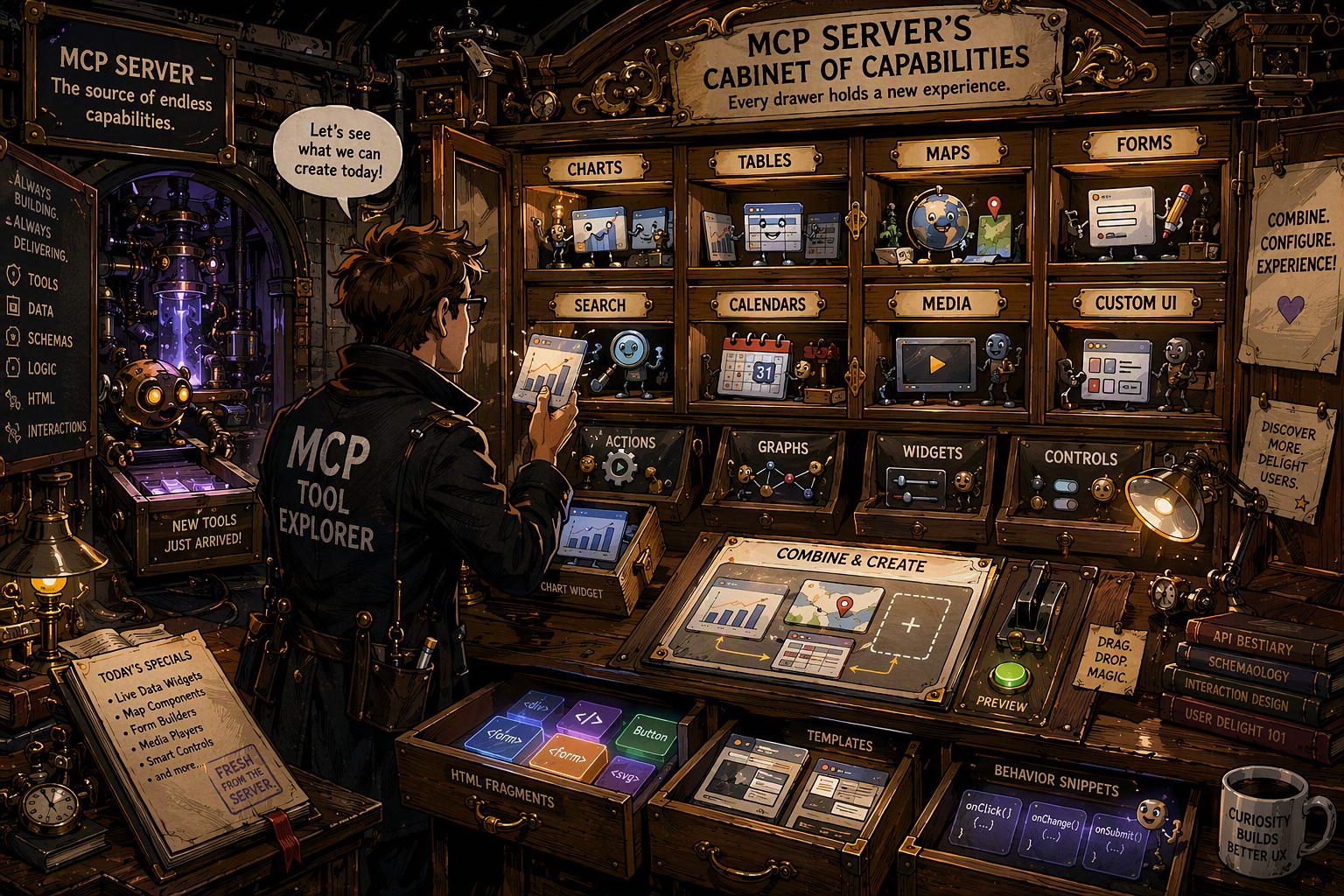
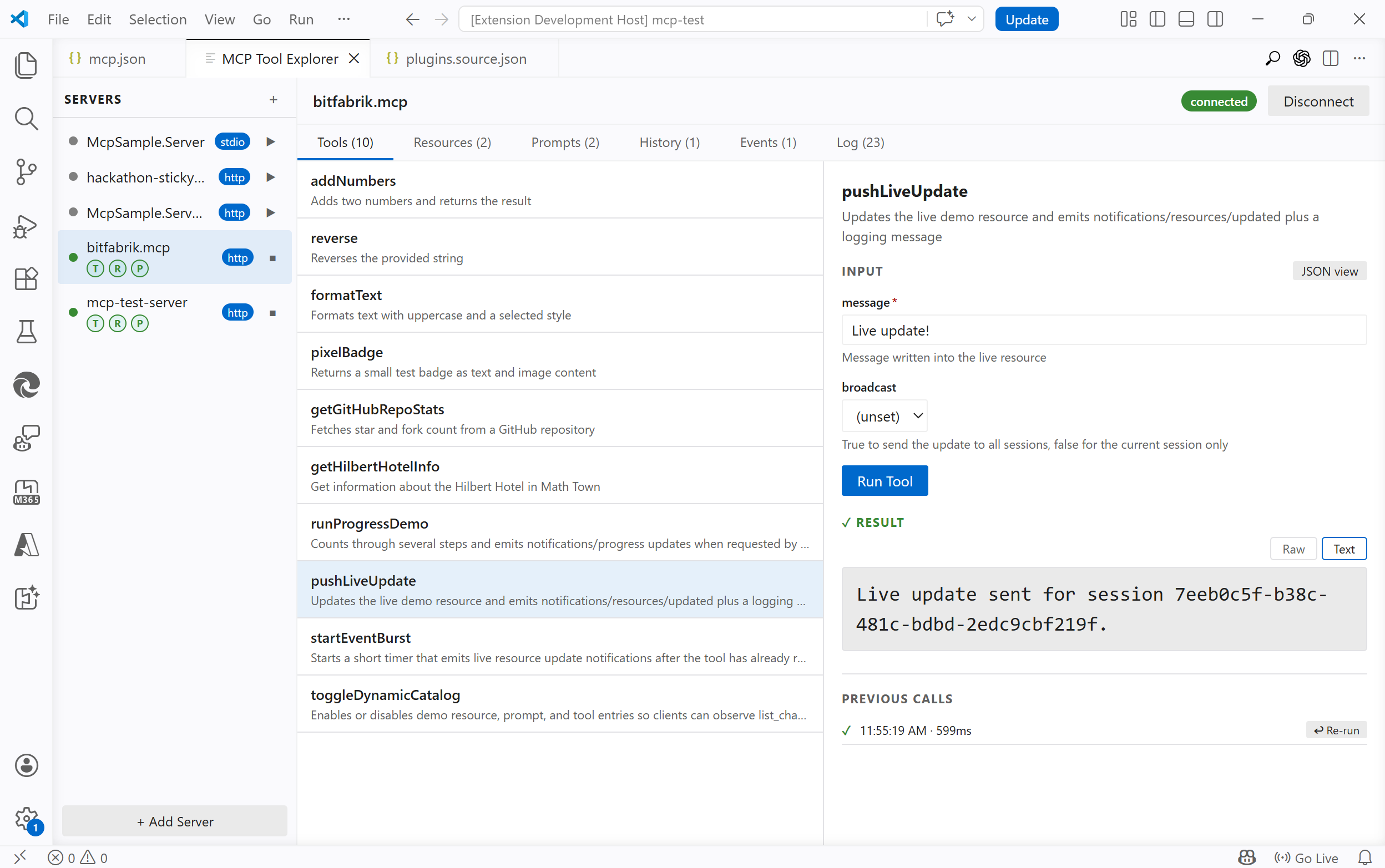
Connect to any MCP server, browse its capabilities, call tools with live input forms, read resources, render prompts, inspect notifications, and review connection traffic. All without leaving your editor.
Supports MCP Apps: tools that ship an interactive UI rendered directly inside the explorer.
- Auto-discovery Finds workspace MCP servers automatically.
- All core capabilities Tools, resources, prompts, events, and history.
- Transport diagnostics Request and response detail for troubleshooting.
Features
Server Management
- Auto-discovery - automatically finds servers defined in
.vscode/mcp.jsonor themcp.serversworkspace setting - Manual registration - add any server on the fly via the Add Server dialog
- All three transports -
stdio, SSE, and Streamable HTTP - Capability indicators — each connected server shows T / R / P badges: green = items available, dimmed = declared but empty, hidden = not supported
Tools
- Browse all tools exposed by a server with their descriptions and parameter schemas
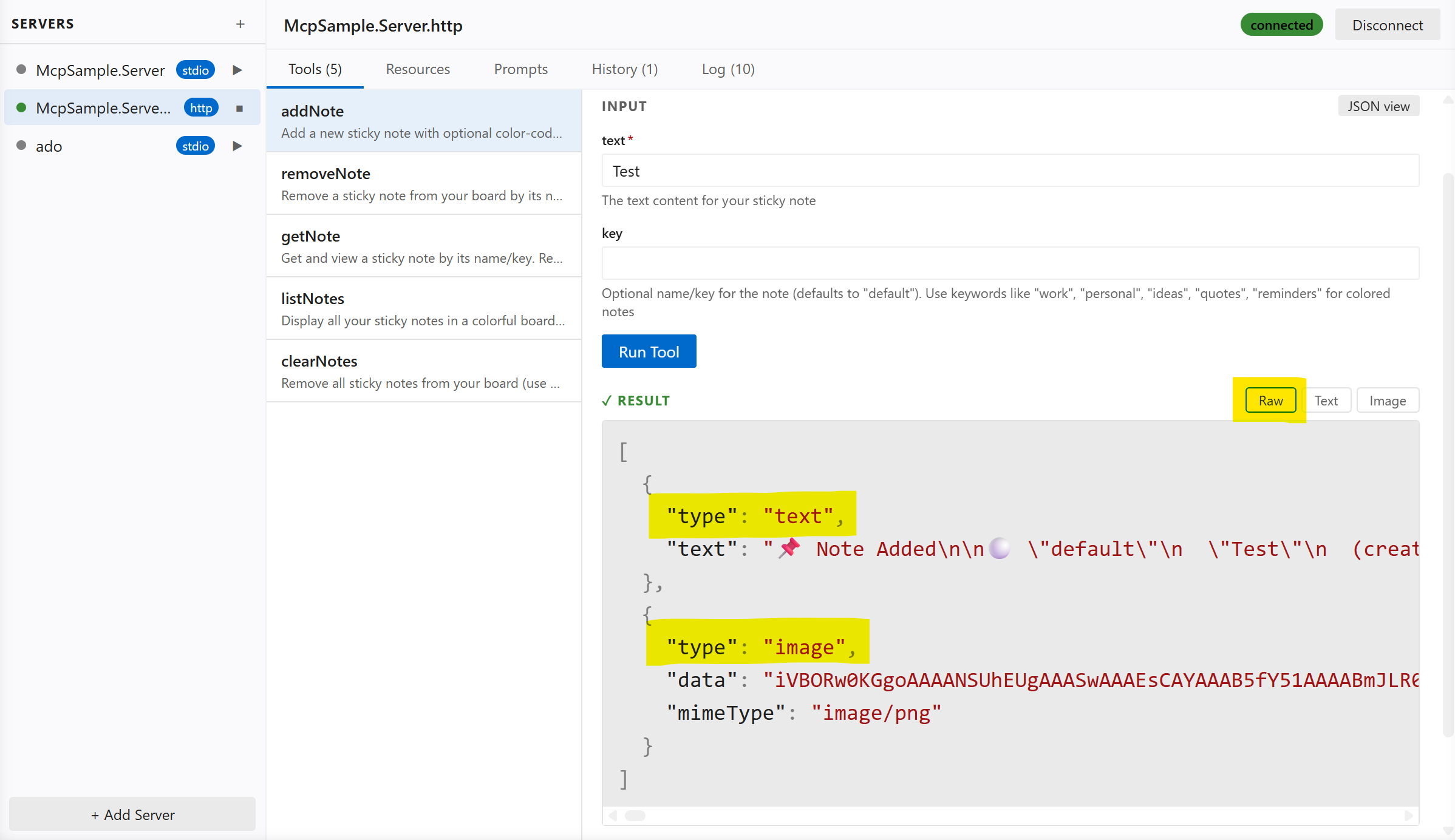
- Form view — auto-generated input form with type-aware fields (text, number, boolean toggle, enum select), including nested object fields
- JSON view — write raw JSON arguments with live validation hints (missing required fields, unknown properties)
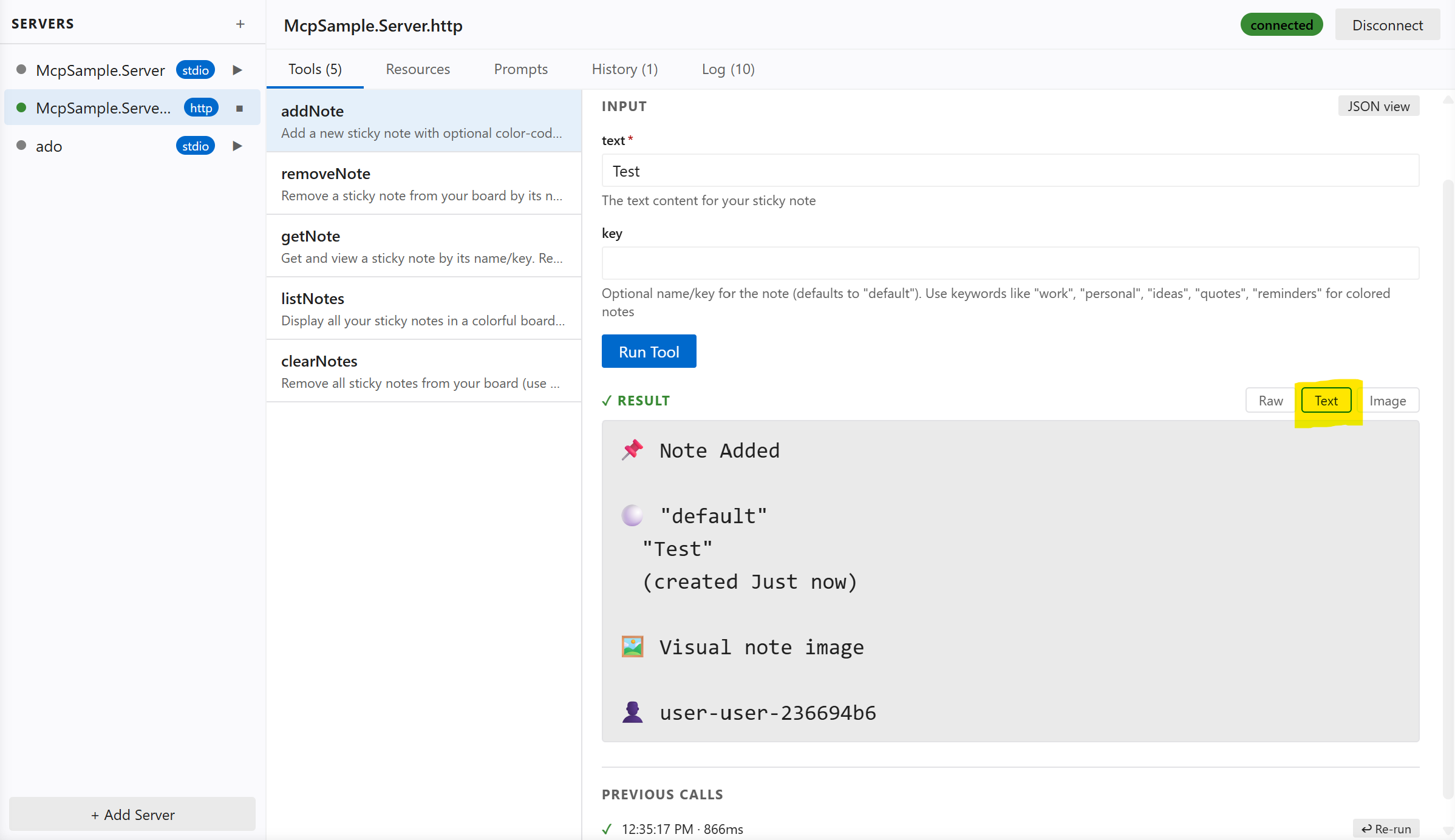
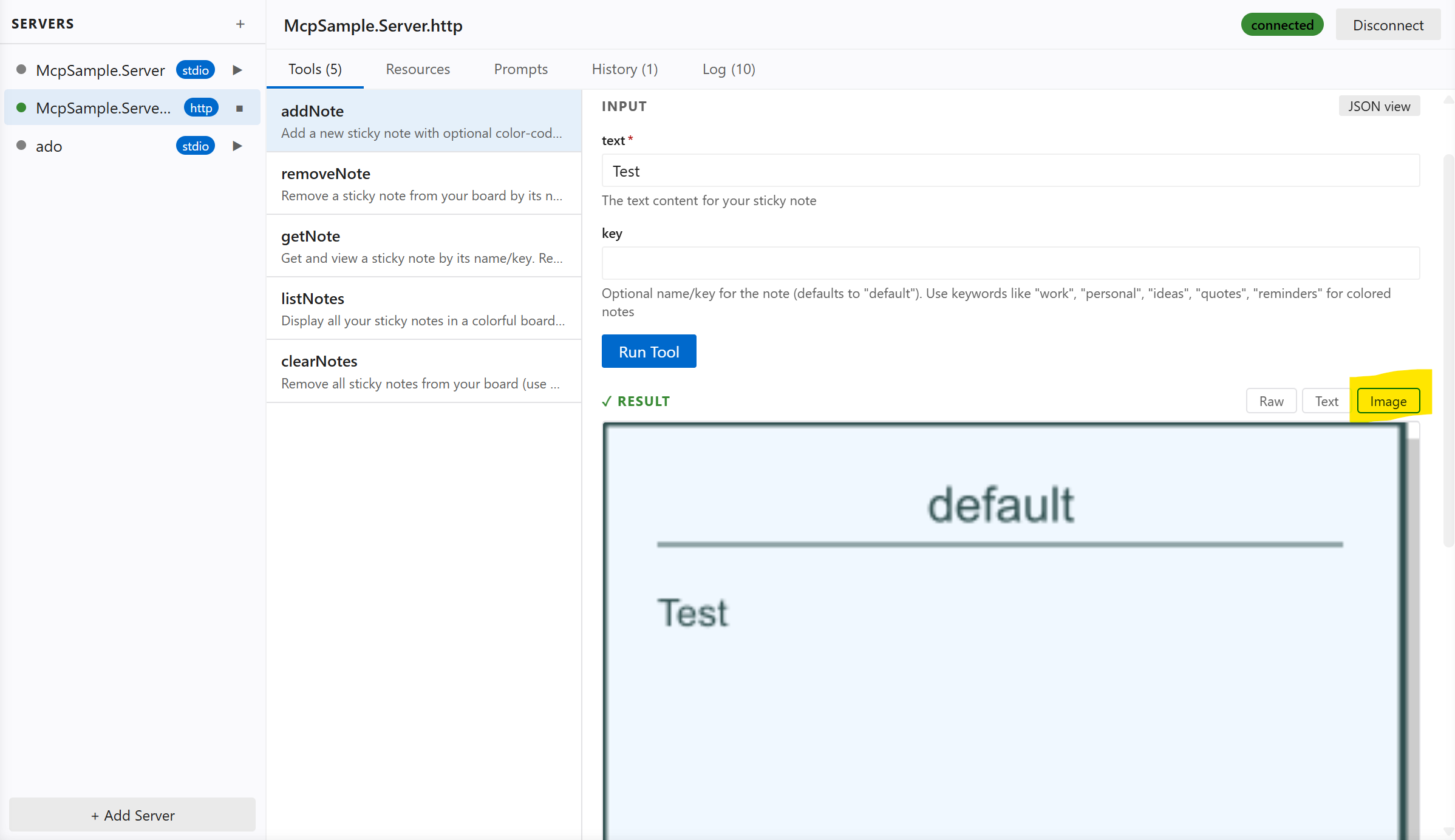
- Run tools and see syntax-highlighted results — press Ctrl+Enter to run without leaving the keyboard
- Filter — a search bar appears above the tool list when a server exposes 10 or more tools
- Previous calls — the last 6 calls per tool are shown inline with one-click re-run
- The first available tool is automatically selected when a server connects
MCP Apps
Tools can declare a ui:// resource URI in their _meta.ui.resourceUri field (MCP spec 2026-01-26).
When such a tool is called, the explorer loads its HTML UI in a sandboxed iframe directly below the result,
with no browser, no external window.
The iframe communicates with the MCP server through the explorer's built-in JSON-RPC 2.0 bridge:
it can call tools/call and resources/read back against the server in real time,
enabling fully interactive experiences like live regex visualizers, fractal renderers, or code diff viewers.
Tools with an MCP App UI are marked with an MCP App badge in the tool list.
Resources
- List all resources and read their contents
- Results rendered with syntax highlighting
- Filter — a search bar appears when a server exposes 10 or more resources
- Resource list updates can be refreshed automatically when the server emits
notifications/resources/list_changed
Prompts
- Browse and render prompts with argument input support
- Filter — a search bar appears when a server exposes 10 or more prompts
- Prompt list updates can be refreshed automatically when the server emits
notifications/prompts/list_changed
Notifications and Events
- A dedicated Events tab shows incoming server notifications such as logging messages, progress updates, resource updates, and list-change notifications
- Related notifications can be visually grouped when they originate from the same server-side activity
- Streamable HTTP servers can surface server-initiated events, including out-of-band notifications over the standalone SSE stream
Saved Tests
- A dedicated Tests tab lets you save and replay tool calls as named test cases
- Organise tests into named groups
- Run individual tests or all tests in a group at once and see pass / fail results inline
- Tests are saved to
mcp-tests.jsonin the workspace root and automatically reloaded when the file changes - Supports both Form view and JSON view for test arguments — press Ctrl+Enter to run
Request History
- A dedicated History tab records every tool call, resource read, and prompt render
- See timestamp, duration, status (success / error), and expand to inspect the request arguments and response
- Re-run any past tool call directly from the timeline
Connection Diagnostics
- A dedicated Log tab records MCP transport activity for troubleshooting
- For HTTP-based servers, request and response details are captured to help diagnose initialization, fallback, auth, and notification-delivery issues
- Actionable hints are shown for common errors (host not found, connection refused, TLS issues, HTTP 4xx/5xx, invalid URL scheme)
- HTML error pages (e.g. IIS error responses) are automatically stripped to show only the relevant title
- In-progress connections can be cancelled at any time with the Cancel button
JSON Viewer
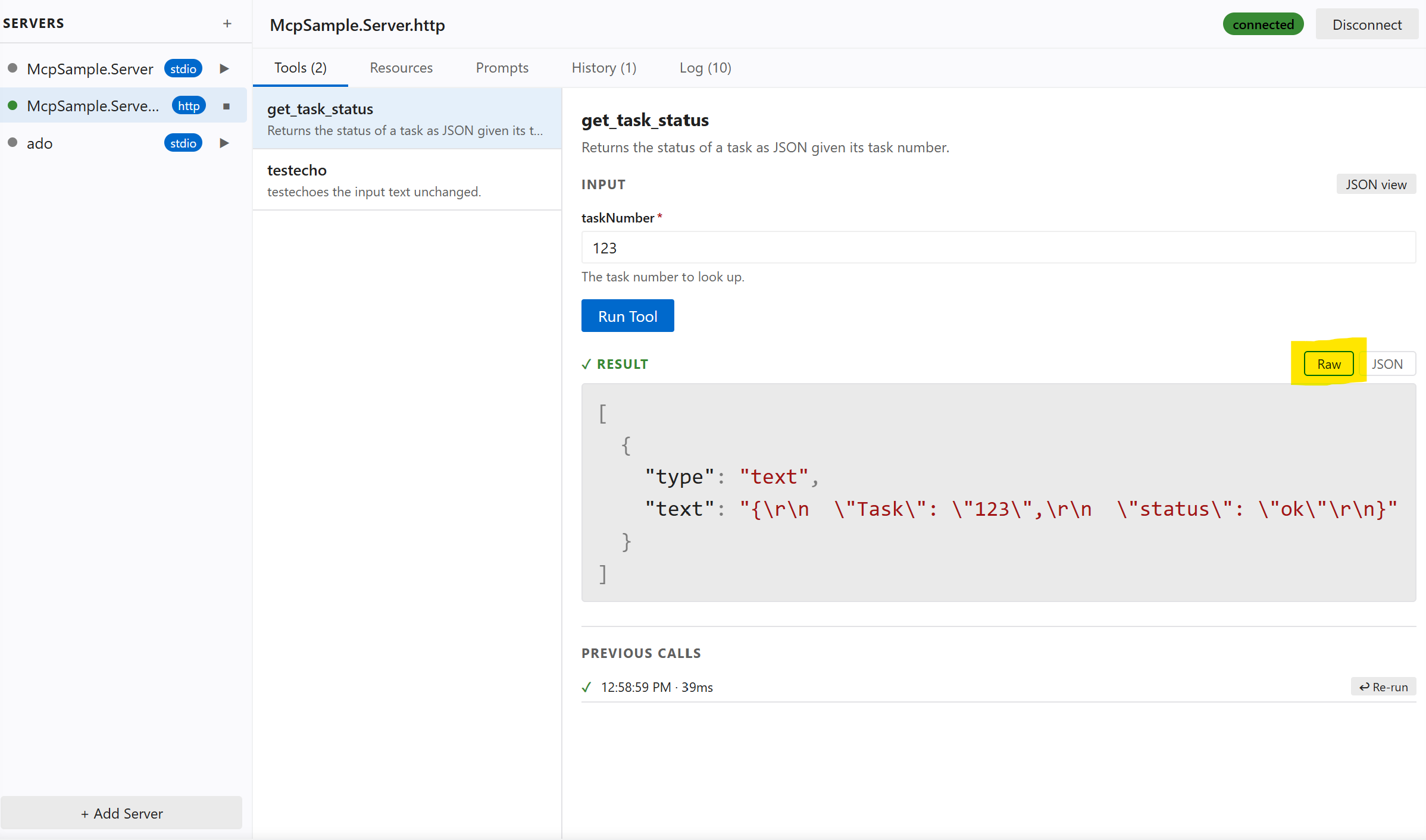
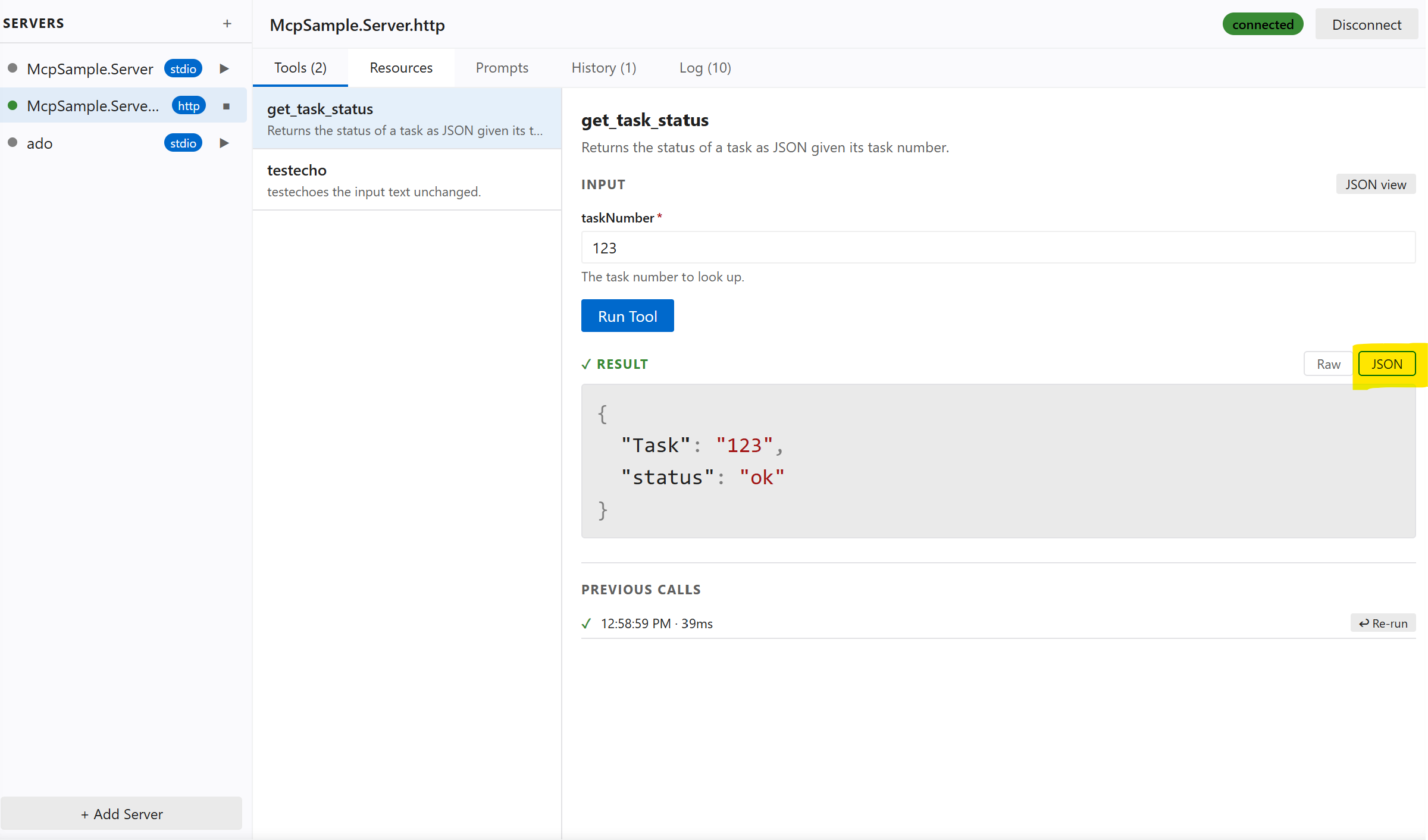
- Syntax-highlighted JSON output (keys, strings, numbers, booleans, nulls each in distinct colours)
- Copy to clipboard button appears on hover over any result
Getting Started
Installation
Install from the VS Code Marketplace, or build from source (see Building).
Test Server
If you want to try the extension against a ready-made MCP server, see mcp-test-server. It is useful for quickly validating tool calls, resources, and prompts while testing the explorer. A publicly reachable test endpoint is also available at https://bitfabrik.io/mcp.
Opening the Explorer
- Run
MCP: Open MCP Tool Explorerfrom the Command Palette (Ctrl+Shift+P)
Auto-discovery
If your workspace has a .vscode/mcp.json file, servers are discovered automatically when the extension activates. Example:
{
  "servers": {
    "my-stdio-server": {
      "type": "stdio",
      "command": "node",
      "args": ["./server/index.js"]
    },
    "my-http-server": {
      "type": "http",
      "url": "http://localhost:3000/mcp"
    }
  }
}
Adding a Server Manually
Click + Add Server in the sidebar and fill in the connection details:
- stdio servers support
command,args(quote arguments that contain spaces),env, and an optional working directory (cwd) - HTTP / SSE servers support a
urland optional requestheaders
Manually added servers persist for the lifetime of the VS Code window.
Transports
| Type | Config key | Description |
|---|---|---|
stdio |
command, args, env, cwd |
Spawns a local process |
http |
url, headers |
Streamable HTTP (MCP 2025-03 spec) |
sse |
url, headers |
Server-Sent Events (legacy) |
For stdio servers, the working directory defaults to the workspace root so relative paths in command resolve correctly.
Building
# Install dependencies
npm install

# Build (webview + extension)
npm run buildwebview-ui/. Running
npm run build at the root builds both the webview and the extension host automatically.
Project Structure
src/
  extension.ts              # Extension entry point
  types.ts                  # Extension-side types
  mcp/
    McpClientManager.ts     # MCP client connections (all transports)
    McpConfigDiscovery.ts   # Server auto-discovery
  panels/
    McpToolExplorerPanel.ts # WebView panel & message bridge
webview-ui/
  src/
    App.tsx                 # Root component & state management
    components/
      Sidebar.tsx           # Server list & connection controls
      ToolsPanel.tsx        # Tools tab
      ResourcesPanel.tsx    # Resources tab
      PromptsPanel.tsx      # Prompts tab
      EventsPanel.tsx       # Notifications and events tab
      HistoryPanel.tsx      # History timeline tab
      ConnectionLogPanel.tsx # Transport and connection log tab
      JsonViewer.tsx        # Syntax-highlighted JSON renderer
      AddServerModal.tsx    # Add Server dialog
Requirements
- VS Code 1.85 or later
- Node.js 18+ (for building from source)