-
cPicture 3.7
cPicture is updated to version 3.7
- updated to support devices with high pixel density (High-DPI)
cPicture is a portable App with no installation required.
Download the .ZIP file, (click here for the 64bit version) open the ZIP file and copy the cPicture.exe anywhere on your computer to run the app or use the 'Check for updates' button in the 'Other' category.
For convenience use the Microsoft Installer to create a program folder and copy the app:
Download German 32bit Installer MSI Download English 32bit Installer MSI
Download German 64bit Installer MSI Download English 64bit Installer MSISee the Download Instructions for more details.
For questions, please mail to: cpicture
-
cPicture 3.6.3
cPicture is updated to version 3.6.3
- update color management engine to v2.8
- added sorting by file extension
cPicture is a portable App with no installation required.
Download the .ZIP file, (click here for the 64bit version) open the ZIP file and copy the cPicture.exe anywhere on your computer to run the app or use the 'Check for updates' button in the 'Other' category.
For convenience use the Microsoft Installer to create a program folder and copy the app:
Download German 32bit Installer MSI Download English 32bit Installer MSI
Download German 64bit Installer MSI Download English 64bit Installer MSISee the Download Instructions for more details.
For questions, please mail to: cpicture
-
cPicture 3.6.2
cPicture is updated to version 3.6.2
- updated search (F3 search dialog) to fix a problem with the exif date search
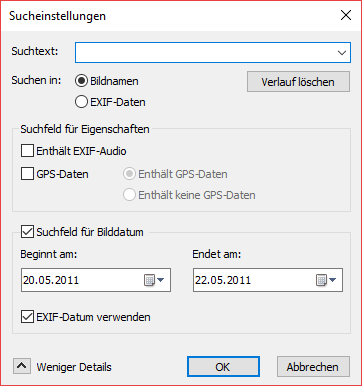
cPicture is a portable App with no installation required.
Download the .ZIP file, (click here for the 64bit version) open the ZIP file and copy the cPicture.exe anywhere on your computer to run the app or use the 'Check for updates' button in the 'Other' category.
For convenience use the Microsoft Installer to create a program folder and copy the app:
Download German 32bit Installer MSI Download English 32bit Installer MSI
Download German 64bit Installer MSI Download English 64bit Installer MSISee the Download Instructions for more details.
For questions, please mail to: cpicture
- updated search (F3 search dialog) to fix a problem with the exif date search
-
cPicture 3.6.1
cPicture is updated to version 3.6.1
- Add unicode EXIF comments using the ExifTools
cPicture is a portable App with no installation required.
Download the .ZIP file, (click here for the 64bit version) open the ZIP file and copy the cPicture.exe anywhere on your computer to run the app or use the 'Check for updates' button in the 'Other' category.
For convenience use the Microsoft Installer to create a program folder and copy the app:
(security dialog: allow installer to execute)
Download German 32bit Installer MSI Download English 32bit Installer MSI
Download German 64bit Installer MSI Download English 64bit Installer MSISee the Download Instructions for more details.
For questions, please mail to: cpicture
-
ExifTools - change exif date
To make adjustments for all exif fields in your pictures, you can use the script plugin in cPicture to run the ExifTools on your picture selection. Assume the camera date/time is wrong by accident and all pictures are stamped with one week in advance.
This example sets all exif date fields back 7 days.
Create a text file, copy the following content and name it to ExifDate.ps1 and save it in the cPicture.exe folder:# plugin variables # console=true displays a console, use this option for scripts with text output #[console=true] # noexit=true keeps the console open, set to 'false' to have the console closed when processing is done #[noexit=false] param ( [string]$name, [string]$dir, [string]$file, [int]$width, [int]$height, [int]$i, [int]$n ) <# -name name -file file -dir dir -width PictureWidth -height PictureHeight -i sequence number -n number of files Example: -name c:\picture_folder\picture.jpg -file picture.jpg -dir c:\picture_folder\ -width 1024 -height 768 -i 1 -n 4 #> # exiftool in cPicture installation folder # "Year:Month:Day Hour:Minute:Second" C:\cPicture\exiftool.exe -AllDates-="0:0:7 0:0:0" $nameStart cpicture, select your pictures you want to change, select the function module selection and select the script you just created:

Hint: If you use any of the exif functions in cPicture, ExifTools gets automatically installed for you.